
For accounting & bookkeeping firms
Set up your firm on DocStreamAI
Nine screens, start to finish. Here is exactly what you'll see when you create a multi-client practice, invite your first client, and start clearing invoices and receipts from a single review queue.
Your firm email
Sign up with the address you want firm-level notifications and billing to reach.
Each client's owner email
The business owner, not an employee — they claim the workspace and invite their own staff.
About ten minutes
Account setup takes three questions. Each client after that is a one-minute invite.
Part 1
Create your firm account
Three questions, then you're in. The first one is the important one — it decides whether your account is a single business or a multi-client practice.
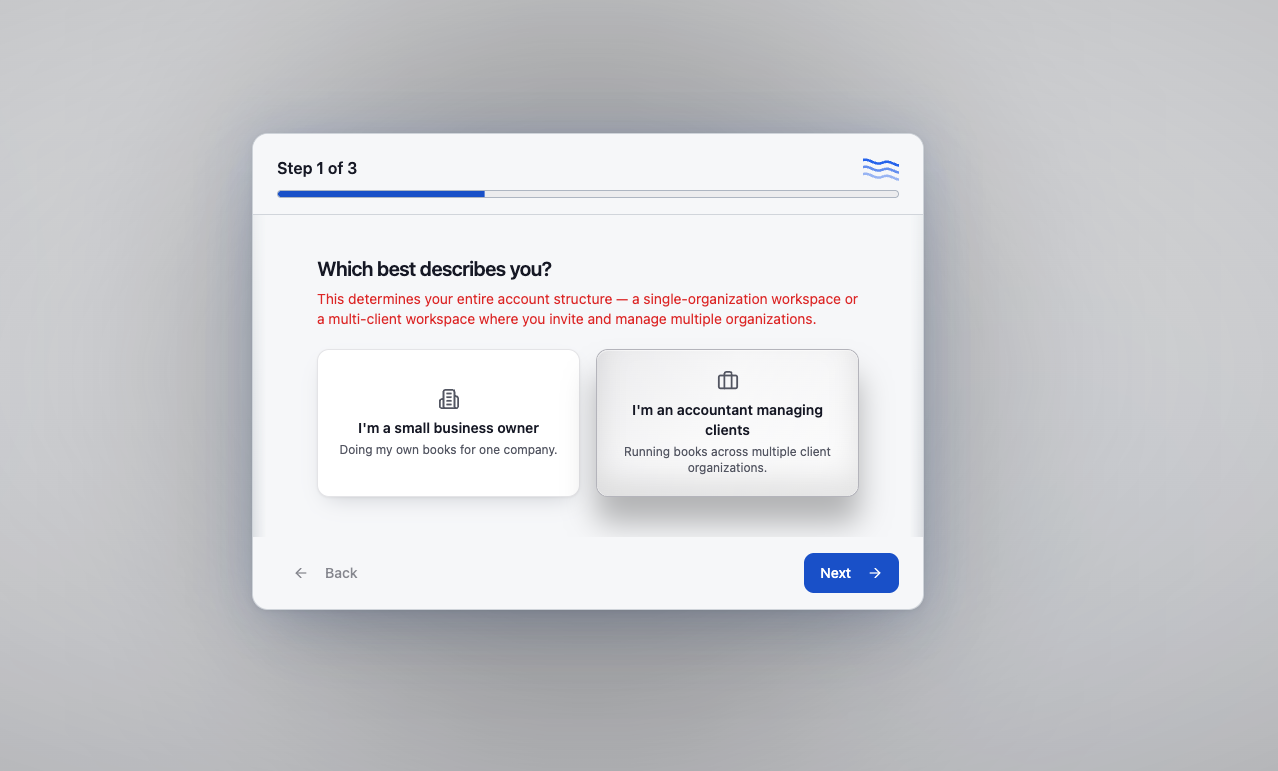
Choose “I'm an accountant managing clients”
This is the fork in the road. Picking the accountant option builds a multi-client workspace: you get a Clients page, firm-level billing, and the ability to move in and out of each client's books. The small-business option builds a single-company workspace instead.
Choose carefully — this sets your entire account structure, not just a label.
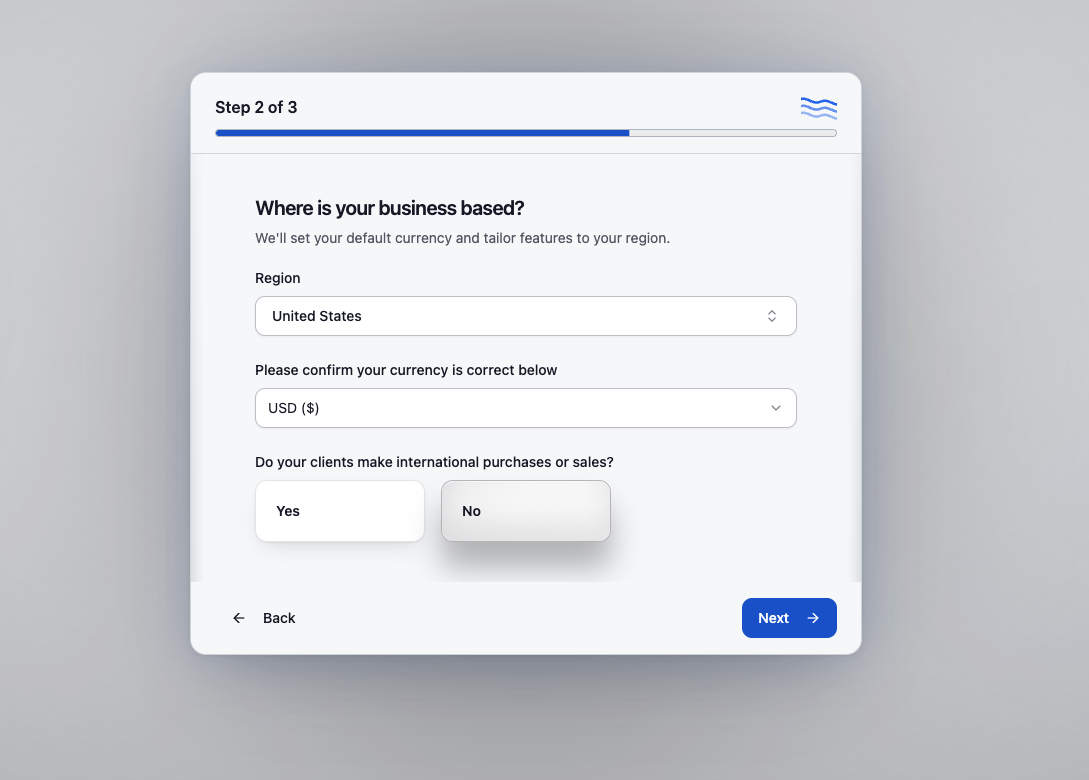
Confirm your region and currency
Set the region your practice operates from and confirm the default currency. Tell us whether your clients buy or sell internationally so multi-currency handling is switched on from day one rather than retrofitted later.
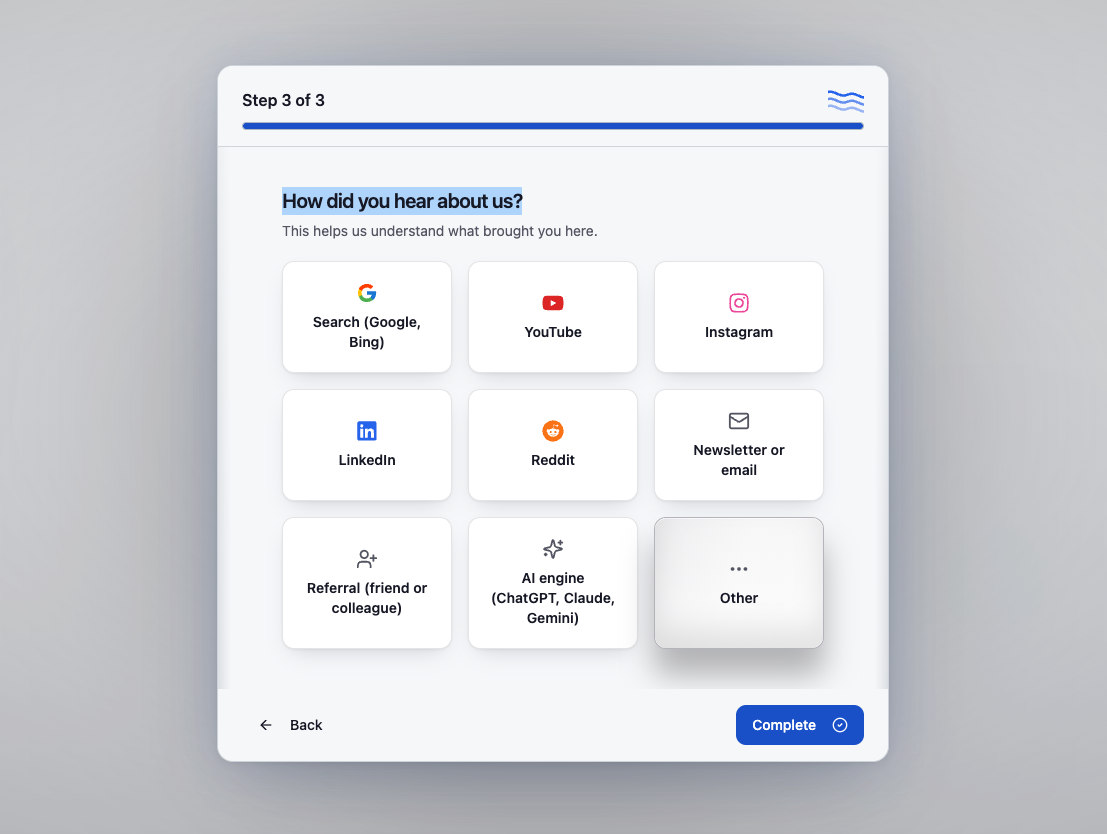
Tell us how you found us
One attribution question, then setup is done. Hit Complete and you land in your firm workspace.
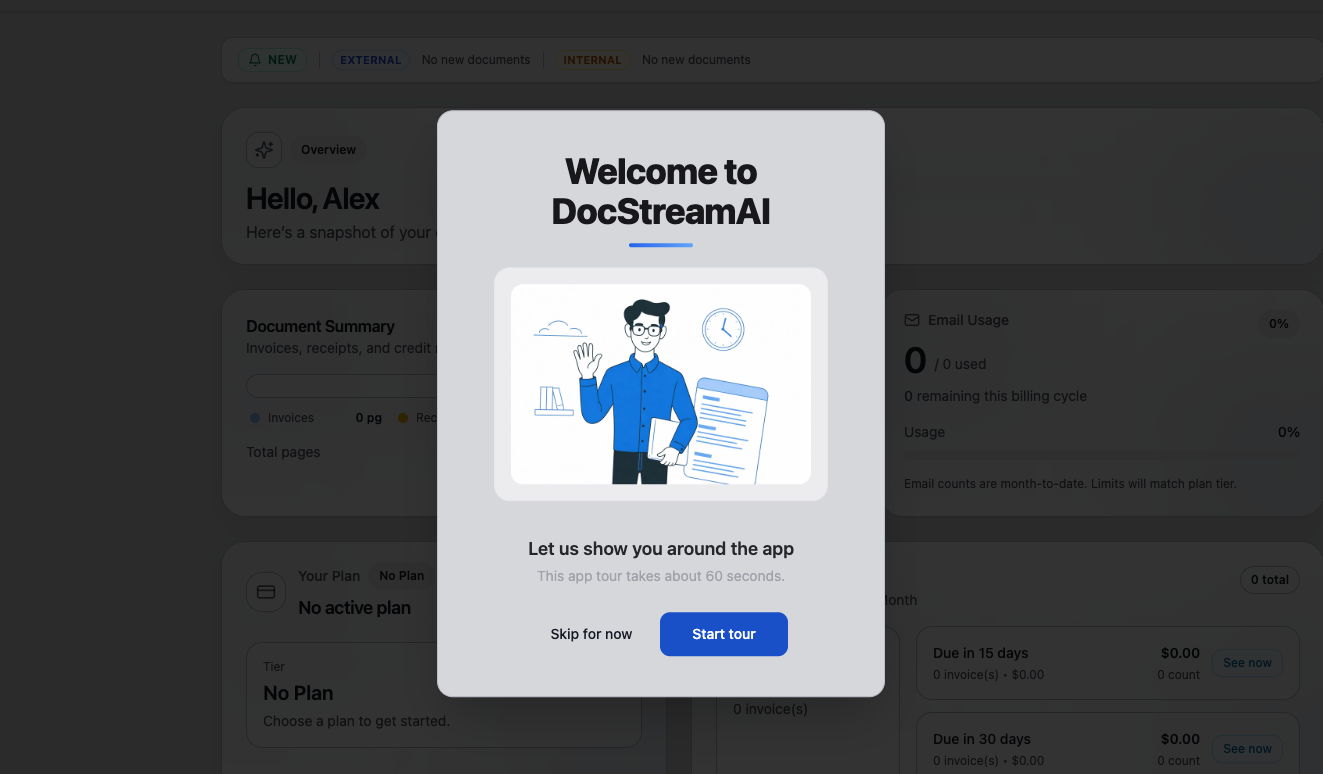
Take the 60-second tour
The guided tour walks the sidebar and the review queue so you know where documents land before you invite anyone. You can skip it and replay it any time from Tour in the sidebar.
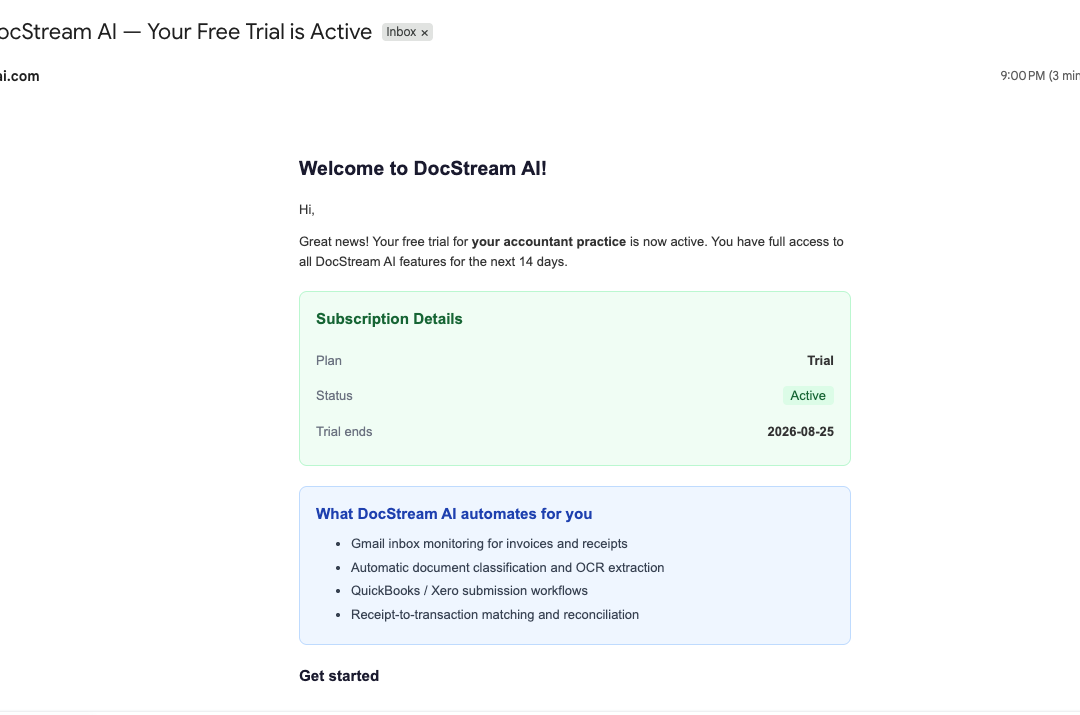
Check your trial confirmation email
Your free trial activates immediately and covers the whole practice for 14 days — inbox monitoring, AI classification and extraction, QuickBooks and Xero submission, and receipt-to-transaction matching. No card required to start.
Part 2
Add your first client
Every client is their own workspace — separate documents, integrations, and settings. You create the workspace; the business owner claims it.
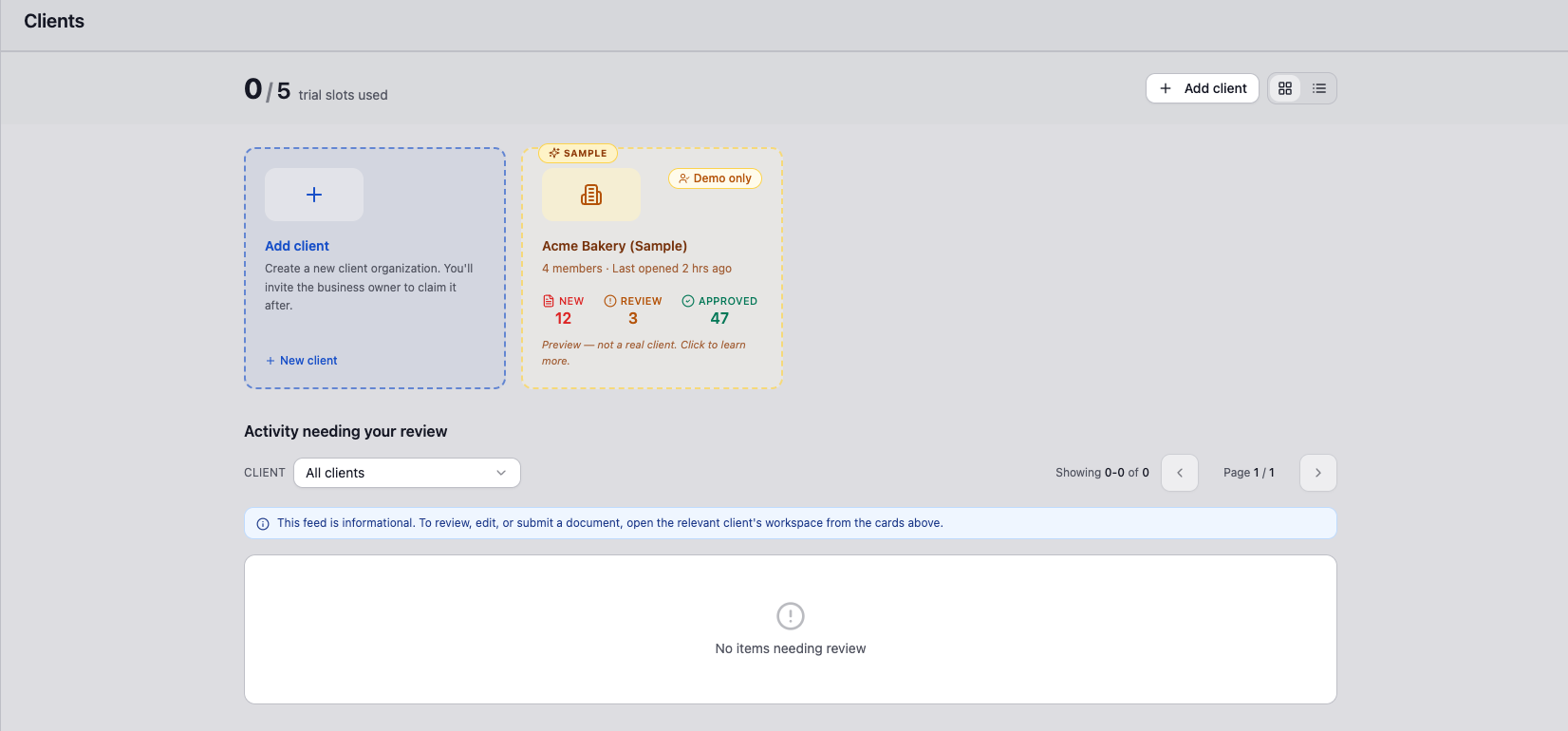
Open the Clients page
This is your home screen as a firm. Your trial opens with client slots ready to use and a sample client already on the board so you can see what a populated workspace looks like before real documents arrive.
The sample client is labelled Demo only — nothing in it is real, and it doesn't consume a slot on your plan.
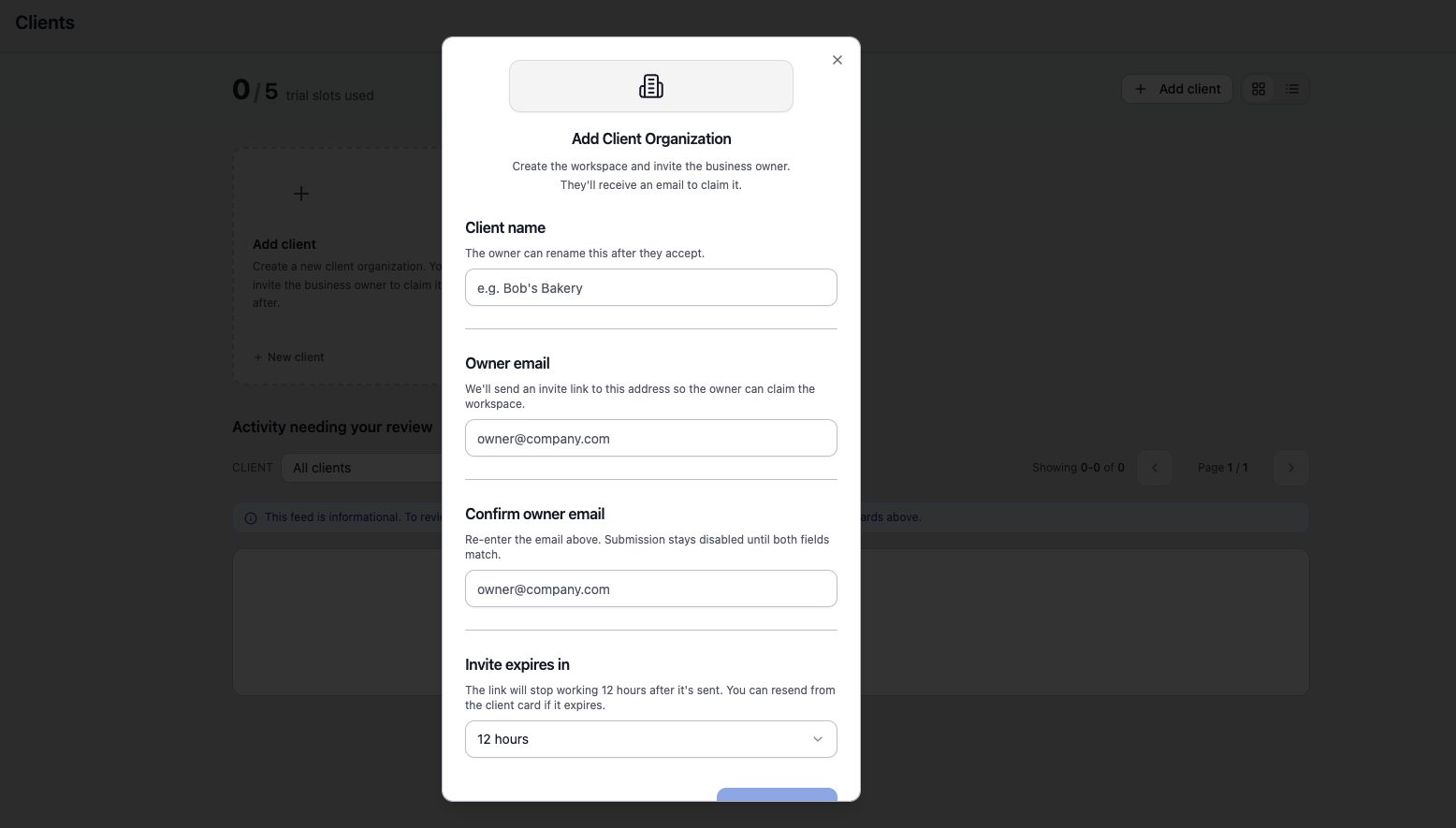
Create the workspace and invite the owner
Give the client a name, enter the business owner's email twice to rule out a typo, and pick how long the invite link stays valid — 12 hours by default, up to a week. DocStreamAI creates the workspace and emails the invite.
Use the business owner's address, not yours and not a staff member's. Whoever accepts becomes the workspace Owner, including for billing.
Part 3
Work the books
Once a client claims their workspace the card flips to Claimed and documents start flowing. From there you review from the firm level and act from inside the client.
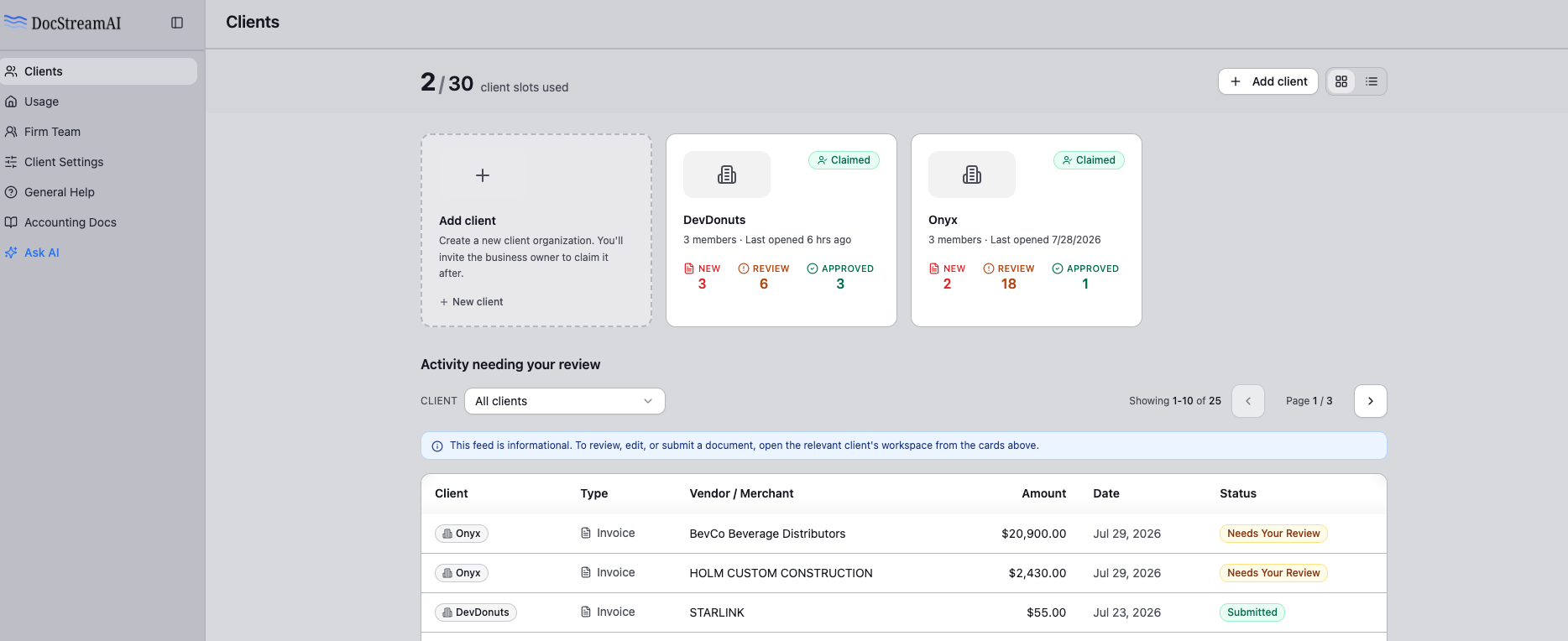
Watch the review queue fill up
Claimed clients show live counts for new, in-review, and approved documents, and the activity feed below rolls every client's outstanding items into one list you can filter by client.
The feed is informational. To review, edit, or submit a document, open that client's workspace from the card above.
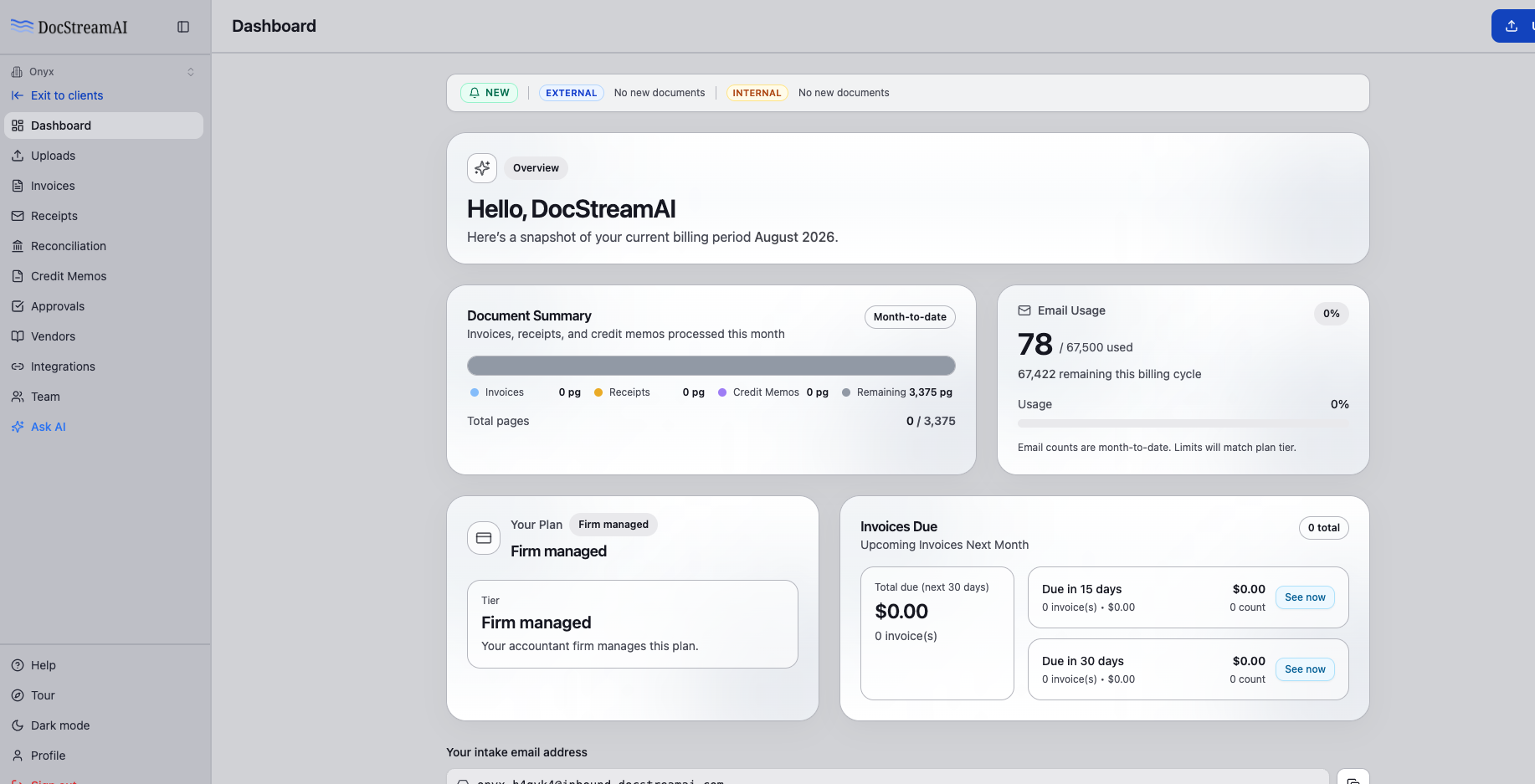
Step into a client's workspace
Click a client card and you're inside their books with full context — uploads, invoices, receipts, reconciliation, approvals, vendors, and integrations. Each workspace has its own intake email address you can forward bills to or hand to the client's suppliers. Exit to clients takes you back to the firm view.
Clients you pay for show as Firm managed, so they never see a separate bill.
Where firms get stuck
Four things worth knowing before you send invites out to a whole client book.
Nothing processes until the owner accepts
A client card sits on “Awaiting owner” until the invite is claimed. If a client says it isn't working, check this first.
The invited person can't already have an account
One DocStreamAI account belongs to one organization. If they already have one, they delete it first or you invite a different address.
Industry is picked by the owner, during claim
It drives how their invoices get categorized, so tell them to choose the closest match rather than the most general one.
Invite links expire
Default is 12 hours. If it lapses, resend a fresh link from the client card — no need to recreate the workspace.
The full invite lifecycle — resending, cancelling, and the roles each client can hand out — is covered in Inviting Clients to a Workspace.
Once a client is in
Connect the inboxes
Have the client connect their Gmail or Outlook, or forward supplier mail to the workspace's intake address.
Gmail setup guideConnect QuickBooks or Xero
See exactly where extracted invoices and receipts land in the ledger before you switch a client on.
See the QuickBooks flowDecide what auto-submits
Per client, choose whether approved documents post automatically or wait for a human on your team.
Accounting settings guideSet up your practice today
Start with a 14-day trial across your whole firm, invite a client or two, and see the queue fill itself. No card required.